
A laptop can fail quietly, disappear from a car, get damaged by a spilled drink, or simply stop turning on one busy morning. For a shop owner, freelancer, home office, or small team, that laptop may hold invoices, receipts, family business records, supplier forms, client documents, photos for a website, and files that nobody has time to recreate.
The problem is not only the device. The real problem is the work sitting inside it. When files are scattered across a desktop, downloads folder, email attachments, USB drives, and shared folders, one broken or missing device can interrupt billing, customer follow-ups, payroll preparation, online orders, and everyday admin.
This guide explains a simple laptop backup plan you can set up before files disappear. It is written for busy people who need practical next steps, not technical jargon.

Why this matters now
More everyday work now happens on portable devices. A home office may use one laptop for proposals, receipts, online banking records, and Microsoft 365 email. A retail shop may keep supplier price lists, sales reports, staff schedules, and customer order files on a counter computer. A freelancer may have current client work saved locally because it was faster than organizing a shared folder.
At the same time, devices move around more. They travel between home, shop, office, client meetings, and delivery runs. That makes damage and loss more likely. Even when the device is still on your desk, storage drives eventually wear out, updates can fail, and accidental deletion happens when people are rushing.
Key reminder: A backup is not just a copy you made once. A useful backup is a routine copy of the right files, kept somewhere separate, and tested before an emergency.
The everyday problem: important files are usually spread out
Most file loss starts with ordinary habits. Someone downloads a supplier invoice and leaves it in Downloads. A staff member saves a customer spreadsheet to the desktop. A family business keeps years of receipt photos on one laptop. A freelancer stores signed forms in an email thread and assumes they can find them later.
None of this feels risky during a normal week. It only becomes urgent when the laptop will not boot, a bag goes missing, or someone deletes the wrong folder while cleaning up storage.
What can go wrong if you wait
Ignoring backup planning can create several practical problems:
- Lost invoices and receipts: billing, tax preparation, and warranty claims become harder.
- Missing customer or client documents: orders, project files, signed forms, and notes may need to be requested again.
- Interrupted work: even a few missing files can slow down sales, bookings, deliveries, or admin tasks.
- Confused staff handover: if files live on one person’s device, another person may not know where to continue.
- False confidence: cloud email or Microsoft 365 may protect some information, but it does not automatically organize every local file, download, or device folder the way you expect.
A simple backup plan for laptops and office computers
You do not need a complicated system to start. You need a clear list of what matters, where it should live, how often it should be copied, and who checks that the copy is working.
1. List the files you cannot afford to lose
Start with real-life folders and documents, not technical labels. For many small offices and households, the list includes:
- Invoices, receipts, quotations, and purchase orders
- Customer records, booking sheets, delivery notes, and order forms
- Client documents, proposals, contracts, and project files
- Product photos, website files, menus, price lists, and marketing images
- Staff schedules, payroll preparation files, and basic business records
- Personal or family business documents kept on a work device
2. Decide where active files should live
If several people need the same files, a shared Microsoft 365 location can be easier than passing copies through email. Shared folders can help owners, staff, and assistants work from the same version instead of hunting through attachments.
This is also where basic account management matters. If someone leaves, changes roles, or loses a device, the business still needs access to the shared files and email accounts. QuickMSP can help with Microsoft 365 email, apps, accounts, and collaboration setup so file access is easier to understand and maintain.
3. Keep a separate backup copy
Shared files are helpful, but they are not a full backup plan by themselves. A backup should keep separate copies that can help after accidental deletion, device failure, or a damaged computer. For a busy owner, managed backup can be simpler because the routine is watched and documented instead of depending on someone remembering to plug in a drive every Friday.
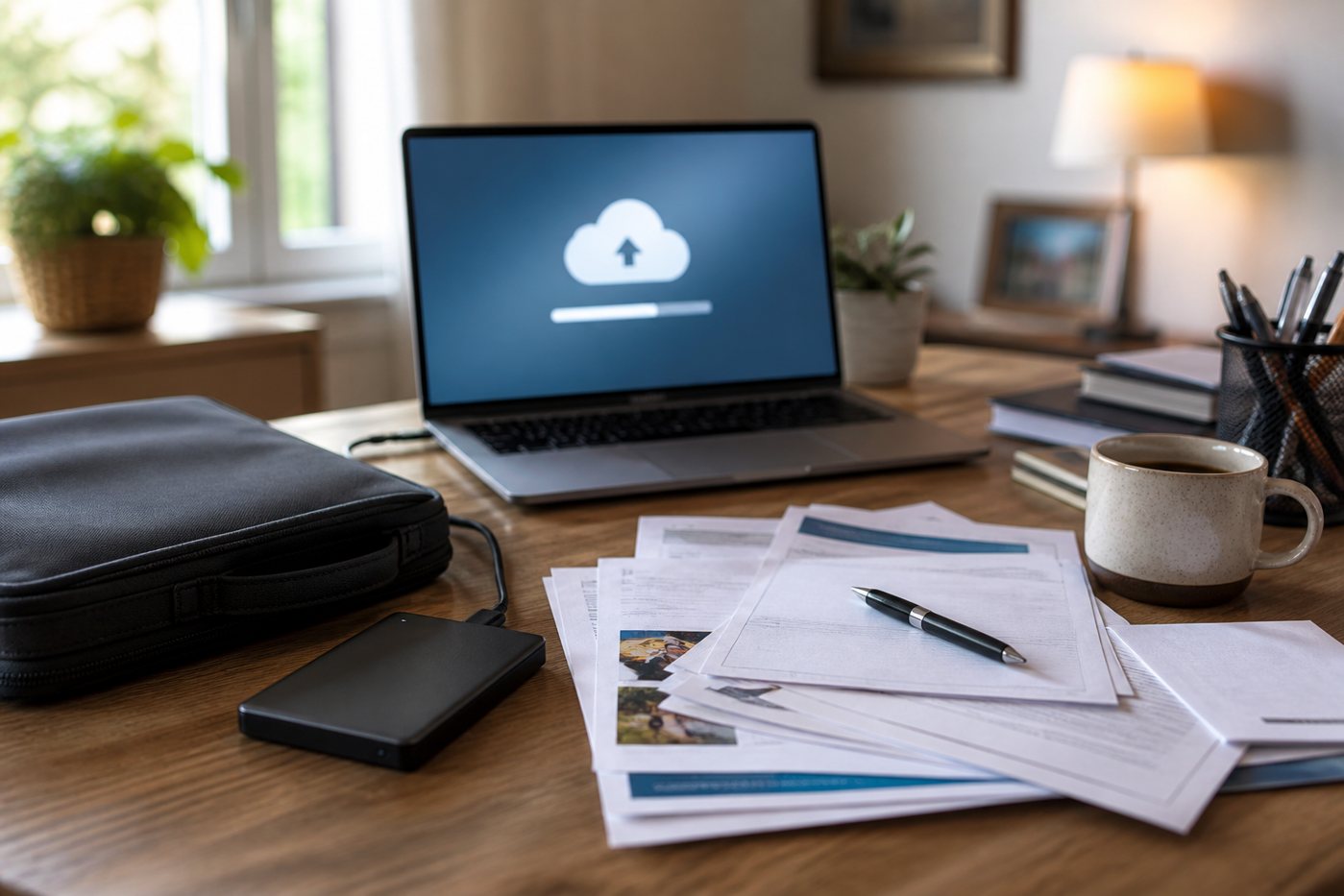
Backup software vs managed backup
Both options can work. The easier choice depends on how much time and attention you can give it.
| Option | Good for | Watch out for |
|---|---|---|
| Backup software | Someone who is comfortable choosing folders, schedules, and storage locations. | It still needs checking. A backup that silently stops working may not help in an emergency. |
| Managed backup | Busy shops, freelancers, home offices, and small teams that want a clearer routine. | Scope must be agreed. Decide which devices, folders, and retention needs are included. |
| Manual copy to a drive | Small one-off file sets or temporary extra copies. | Easy to forget, overwrite, misplace, or leave beside the same device. |
Simple checklist before something fails
Use this checklist before a laptop is lost, damaged, or replaced:
- Write down the main folders that matter: Desktop, Documents, Downloads, accounting folders, customer folders, and project folders.
- Move shared work into an agreed Microsoft 365 location where appropriate.
- Check who owns each Microsoft 365 account and shared folder.
- Set a backup schedule for important local files.
- Keep backup copies separate from the laptop or office computer.
- Test recovery with a small file before there is an emergency.
- Review the plan when staff change, devices are replaced, or new folders become important.
What to ask for when arranging backup
Before choosing backup software or a managed backup service, ask simple questions:
- Which files and folders are included?
- How often are files copied?
- Where are backup copies kept?
- How long are old versions retained?
- How would a deleted file be restored?
- Who checks that the backup is still running?
- What happens when a laptop is replaced?
Practical tip: Do not wait for the perfect system. Start by protecting the folders you use every week, then improve the routine as your shop, office, or home business grows.
How QuickMSP can help
QuickMSP focuses on practical technology services that support daily work: backup software, managed backup, file recovery planning, Microsoft 365 email and collaboration, domain names, web hosting, and SSL certificates. For this topic, the main goal is simple: make sure important files are copied, organized, and easier to recover before a device problem becomes a business problem.
If your laptop, shop computer, or home office device holds files you cannot afford to lose, contact QuickMSP. We can help you review what should be protected, choose a sensible backup approach, and connect it with the Microsoft 365 folders and accounts your team already uses.