

A busy shop, home office, or one-person business can create a surprising amount of important information in a normal week: invoices, receipts, appointment notes, customer files, quotes, photos, spreadsheets, email attachments, and shared documents. Most of it does not feel dramatic until it disappears.
Maybe a laptop stops turning on. Maybe someone deletes the wrong folder while cleaning up the desktop. Maybe a shared cloud folder is overwritten. Maybe a ransomware message appears and locks files right before payroll, tax work, or a customer deadline. In those moments, the question is simple: can you get your files back quickly?
This is where managed backup for small shops and everyday offices makes life easier. Instead of hoping that one USB drive, one laptop, or one cloud folder is enough, managed backup gives you a practical routine: the right files are backed up, backups are monitored, and restore help is available when something goes wrong.
The everyday problem: important files are scattered everywhere
Small businesses and households rarely keep files in one tidy place. A retail shop may have receipts on the point-of-sale computer, supplier invoices in email, staff schedules in a spreadsheet, and product photos on a laptop. A freelancer may keep client documents in Microsoft 365, a desktop folder, a cloud drive, and a phone. A family business may have years of records mixed between an old desktop, a newer laptop, and a shared folder.
Cloud services are useful, but cloud storage is not always the same as backup. Sync tools are designed to keep files available across devices. If a file is deleted, corrupted, or changed on one device, that change may sync everywhere. Some services keep version history, but it may not cover every device or account you need.
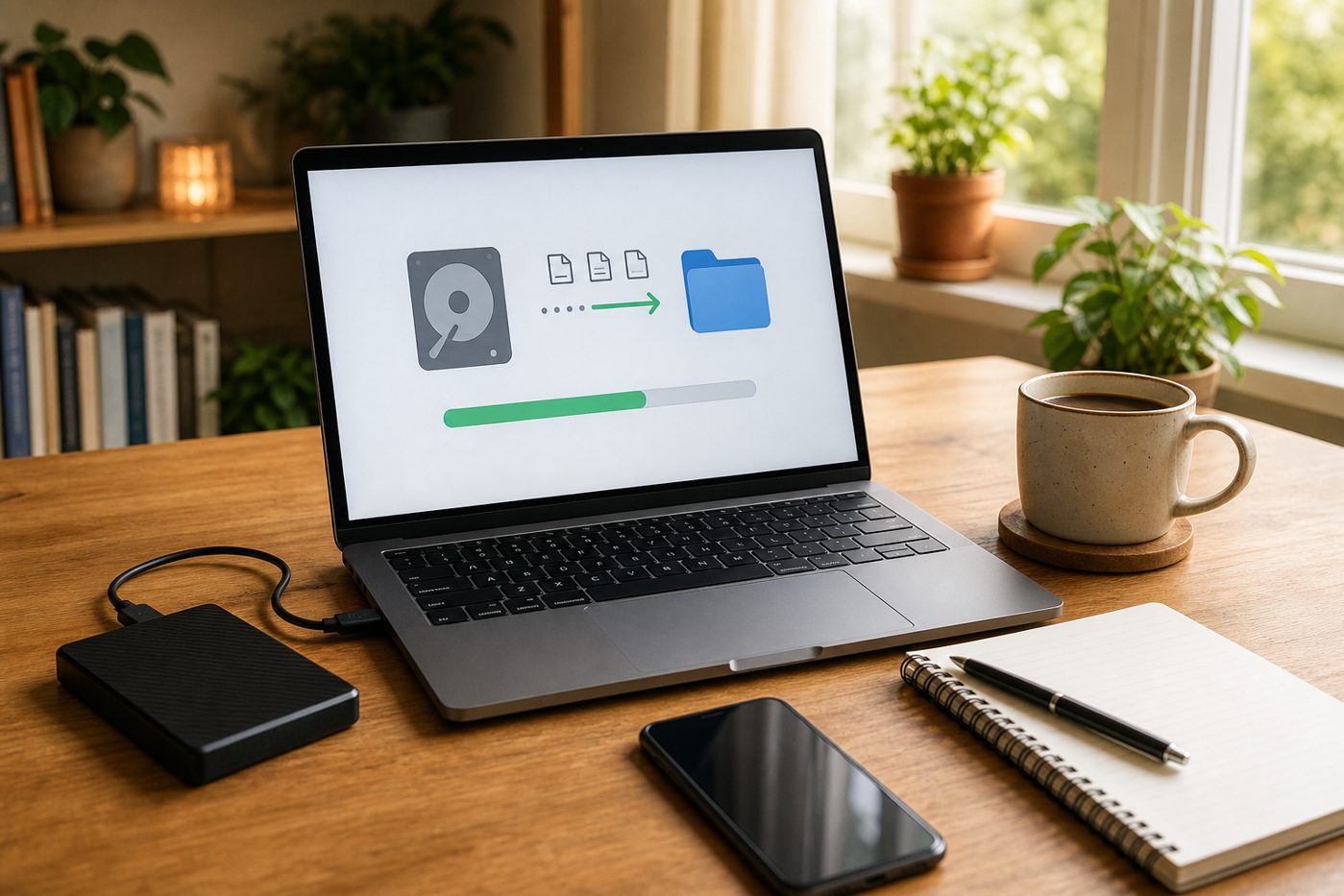
What can go wrong if backup is an afterthought?
Ignoring backup does not always cause a problem today. That is why it is easy to delay. The risk is that when something finally fails, there may be no simple way back.
- Accidental deletion: A staff member deletes an invoice folder, a client file, or last month’s spreadsheet while organizing files.
- Device failure: A shop computer, laptop, or external drive fails without warning.
- Ransomware or malware: Files are encrypted or damaged, and normal work stops until clean copies can be restored.
- Cloud sync mistakes: A bad edit, overwritten document, or deleted folder syncs across multiple devices.
- Account problems: An email or cloud account is locked, closed, misconfigured, or accessed by the wrong person.
- Website or domain disruption: If website files, domain details, or renewal information are not managed, email and web access can be interrupted at the worst time.
Backup software vs. managed backup: what is easier for a busy owner?
Backup software can be a good fit when someone has the time and confidence to choose what to protect, check whether jobs are running, test restores, and fix errors. Managed backup is better when you want help setting it up correctly and keeping an eye on it.
| Question | Backup software only | Managed backup service |
|---|---|---|
| Who chooses what gets protected? | You or someone on your team | You, with help identifying key files and devices |
| Who checks if backups are working? | You need to review alerts and logs | The service includes monitoring and follow-up |
| Who helps during a restore? | You follow the software process | You can ask for practical restore support |
| Best fit | Confident users with time to manage it | Busy shops, home offices, freelancers, and small teams |
What should a practical backup plan include?
A useful backup plan does not have to be complicated. It should protect the files that matter, run regularly, keep copies away from the original device, and include a restore process that someone can actually use.
1. Know what files matter most
Start with the files you would panic about losing. For a shop, that may be invoices, receipts, supplier records, product lists, staff schedules, customer documents, and point-of-sale exports. For a freelancer, it may be client folders, contracts, design files, tax records, and email attachments.
2. Protect the devices people really use
Backups should match real work habits. If the most important spreadsheet sits on the front desk computer, that device matters. If the owner keeps quotes on a laptop at home, that laptop matters too. If staff save files in a shared folder, that folder needs attention. A plan that ignores how people actually work will leave gaps.
3. Include cloud files and Microsoft 365 basics
Microsoft 365 email, OneDrive, SharePoint, and Teams can make everyday work easier, but accounts still need basic management. People leave, passwords change, folders get shared, and documents are deleted. A good cloud services setup should consider account access, shared folders, email continuity, and whether important cloud files also need separate backup protection.
4. Test a restore before there is an emergency
A small restore test can reveal problems early. Can you recover a deleted invoice or a previous version of a customer list? Testing one restore is one of the best ways to turn backup from a hopeful idea into a dependable safety net.
A simple backup and cloud checklist
Use this checklist as a practical starting point. You do not need to solve everything in one afternoon, but each item reduces the chance of stressful data loss.
- List your most important files: invoices, receipts, customer records, client documents, tax files, product photos, and shared spreadsheets.
- Write down where those files live: desktop, laptop, external drive, Microsoft 365, shared folder, website, or email account.
- Check whether each location is backed up automatically.
- Confirm that backups are stored separately from the original device.
- Make sure someone reviews backup alerts or failed jobs.
- Test restoring one file before you urgently need it.
- Review who has access to Microsoft 365, shared folders, and business email.
- Keep domain name, website hosting, and SSL renewal details organized so email and websites do not stop because of a missed renewal.
- Decide who to contact if a device fails, files vanish, or a suspicious message appears.
Where QuickMSP can help
QuickMSP helps make backup and cloud services easier to manage for everyday users and small teams. That can include backup software guidance, managed backup setup, backup monitoring, file recovery help, Microsoft 365 account and email support, cloud file organization, domain management, web hosting, and SSL certificate assistance.
For businesses that need a deeper ongoing support layer, QuickMSP’s practical technology support service can help with broader technology management. For many shops, freelancers, and home offices, though, the best first step is simple: make sure important files, accounts, domains, and cloud services are protected before something breaks.
- Which devices and cloud folders should be backed up?
- How often will backups run?
- Who checks failed backups?
- How quickly can an invoice, folder, or full device be restored?
- Are Microsoft 365, email, domains, hosting, and SSL renewals included in the review?
Do not wait for the broken laptop moment
The best time to organize backup is before the laptop fails, shop computer freezes, someone deletes the wrong folder, or a renewal mistake interrupts email. A simple managed backup and cloud review can turn a future emergency into a manageable restore.
If you are not sure whether your invoices, receipts, customer files, Microsoft 365 accounts, website, domain, and shared folders are properly protected, contact QuickMSP. We can help you review what matters, close the obvious gaps, and set up a practical backup and cloud plan that fits the way you actually work.